Connect an AI assistant
Updated 20 October 2026
With Your agents turned on, Claude, ChatGPT, Gemini, Antigravity and other AI assistants can read the meetings you share and answer questions about them, even when your phone is off. They can only read. They can't change or delete anything.
epoc's address for assistants is https://mcp.epoc.si/mcp.
Before you start
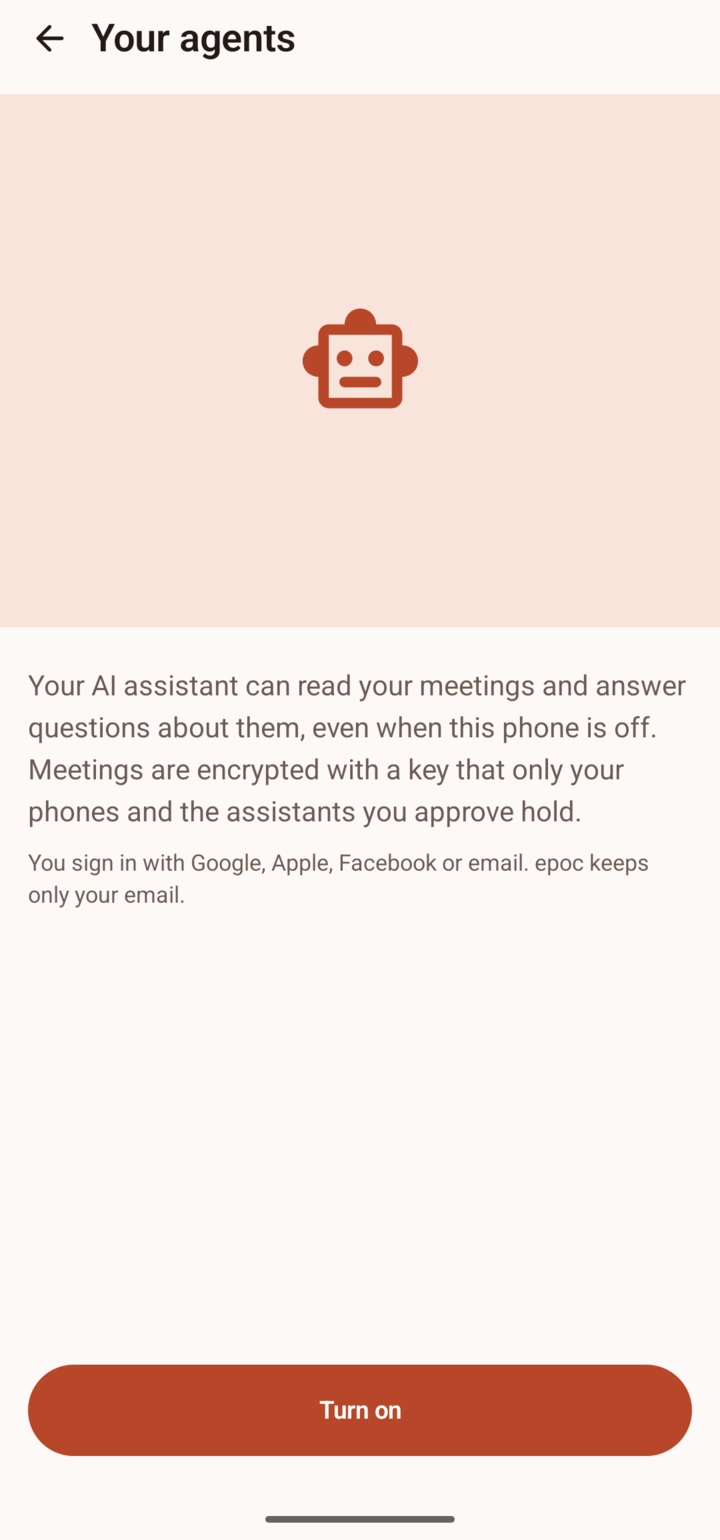
- In epoc on your phone, open Settings, then Your agents, and tap Turn on.
- Sign in, write down your recovery key, and choose which meetings to share.
- Keep your phone nearby. You approve each assistant in the epoc app.
Claude
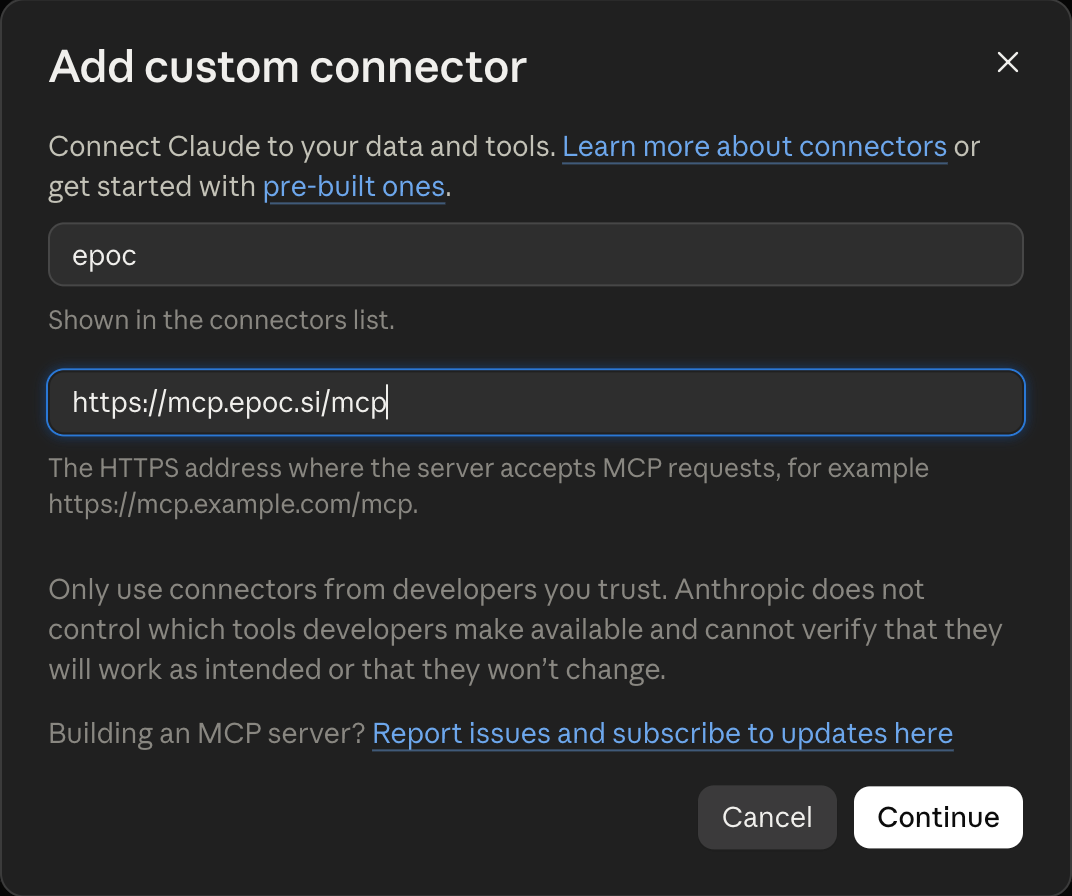
- On claude.ai or in the Claude desktop app, open Customize, then Connectors.
- Choose Add, then Add custom connector.

- Name it epoc, paste
https://mcp.epoc.si/mcpas the address, and choose Continue.
- Sign in to epoc with the account you use in the app, then allow and approve, as below.
On Claude's Free plan you can add one custom connector. A connector you add on the web or the desktop app also works in Claude's phone apps.
ChatGPT
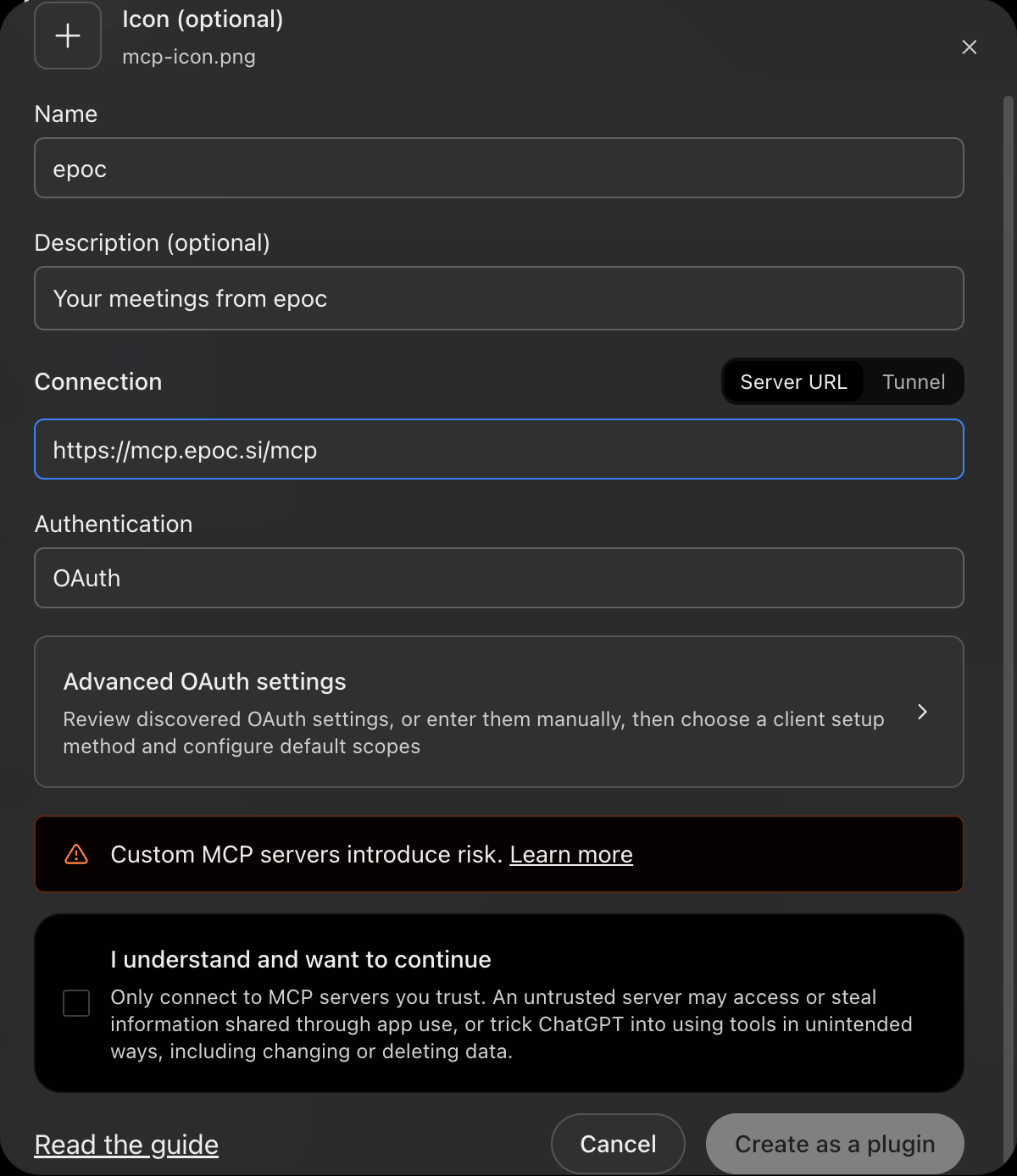
- In ChatGPT on the web, open Plugins in the sidebar, choose Add, then Add custom MCP server.

- Name it epoc and paste
https://mcp.epoc.si/mcpunder Connection, with Server URL chosen. Keep Authentication on OAuth. - For epoc's icon, save https://mcp.epoc.si/icon.png and add it under Icon. ChatGPT doesn't pick it up on its own.
- Tick I understand and want to continue, and choose Create as a plugin.

- Sign in to epoc with the account you use in the app, then allow and approve, as below.
This works on ChatGPT's Free plan, and you don't need developer mode.
Gemini
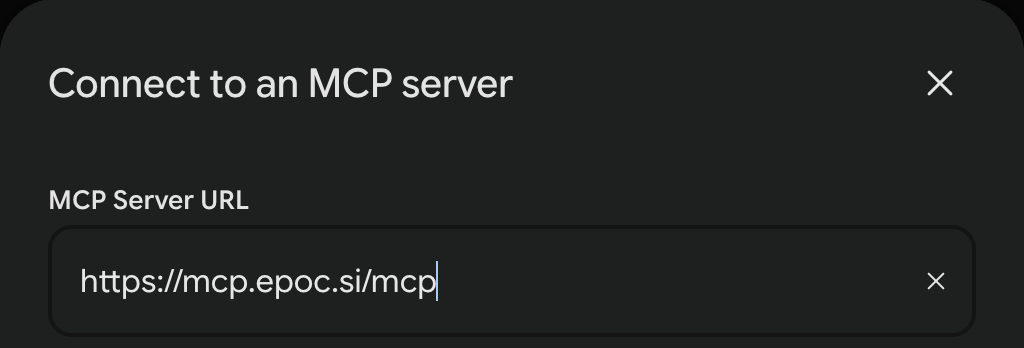
- In Gemini on the web, open Customize in the sidebar, then Connectors, and choose Custom.

- Paste
https://mcp.epoc.si/mcpunder MCP Server URL, and choose Next.
- Google lists what Gemini will be able to do. Scroll to the end, choose Connect, then continue on the page that links your Google account to epoc.
- Sign in to epoc with the account you use in the app, then allow and approve, as below.
- Back in Gemini, choose Connect once more to save epoc. Gemini shows what it can do with it: list_meetings and get_transcript.
- In a chat, type @ and choose epoc, then ask about your meetings.
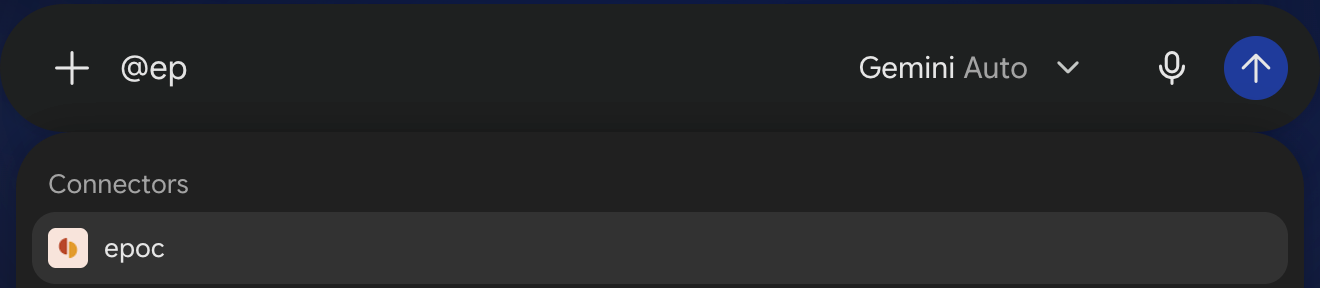
This works on Gemini's free plan. You add epoc on the web, and it then works in the Gemini app on your phone too. Google lists limits for custom connectors for now: a personal Google account, 18 and over, Keep Activity on, the US and English. If Custom isn't there, Gemini doesn't offer it to you yet.
Antigravity
- In Antigravity, open Customizations from the main screen, then the Installed tab. Under MCP Servers, the icon next to + copies the path of Antigravity's MCP settings file,
~/.gemini/config/mcp_config.json. - Add epoc to that file:
{ "mcpServers": { "epoc": { "serverUrl": "https://mcp.epoc.si/mcp" } } }. If it already lists other servers, add"epoc": { "serverUrl": "https://mcp.epoc.si/mcp" }among them. - Back on the Installed tab, epoc appears under MCP Servers, marked Unauthorized until you sign in. Choose Authenticate.
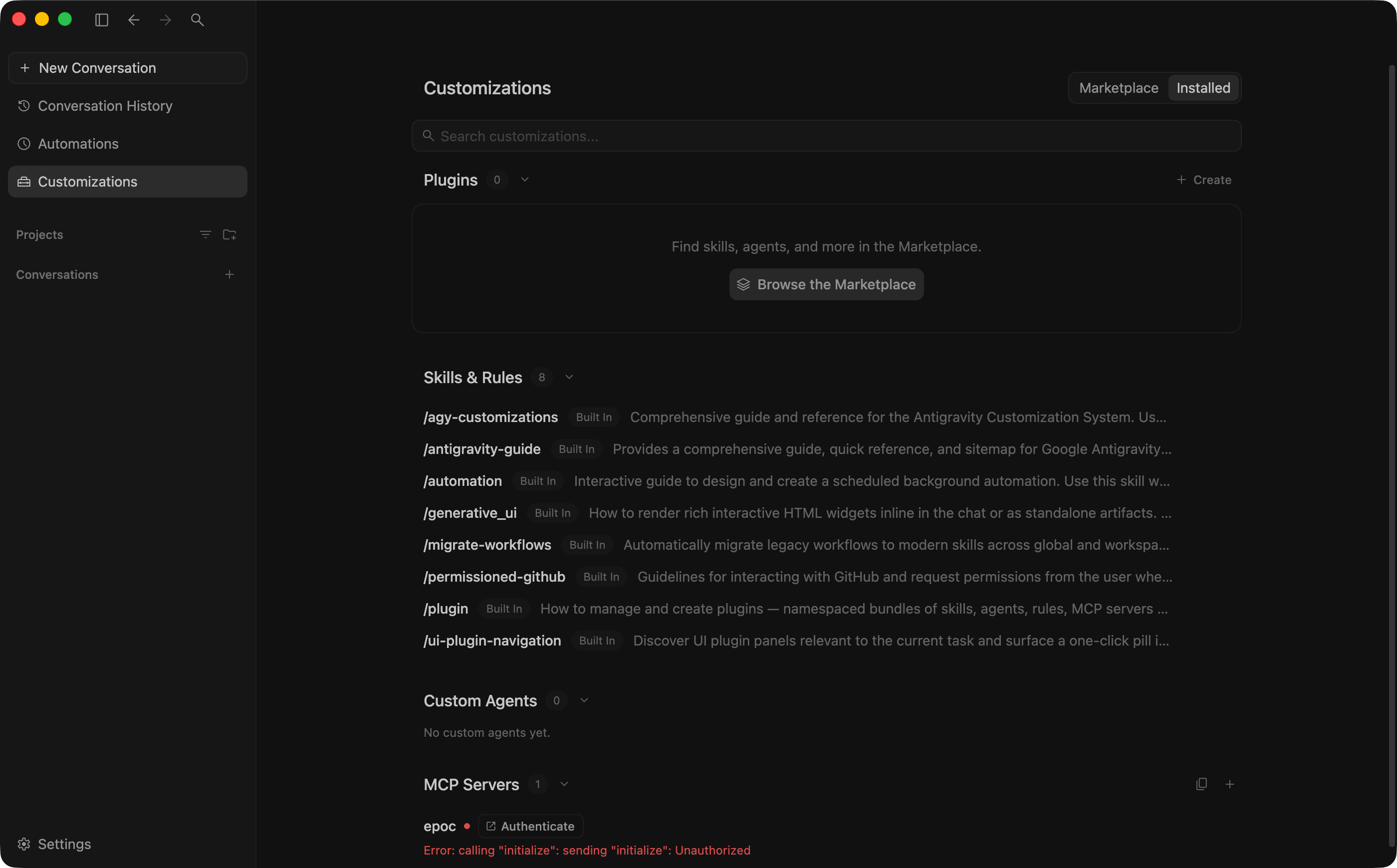
- Sign in to epoc in the browser with the account you use in the app, then allow and approve, as below.
- The browser then shows a code. Choose Copy to Clipboard.
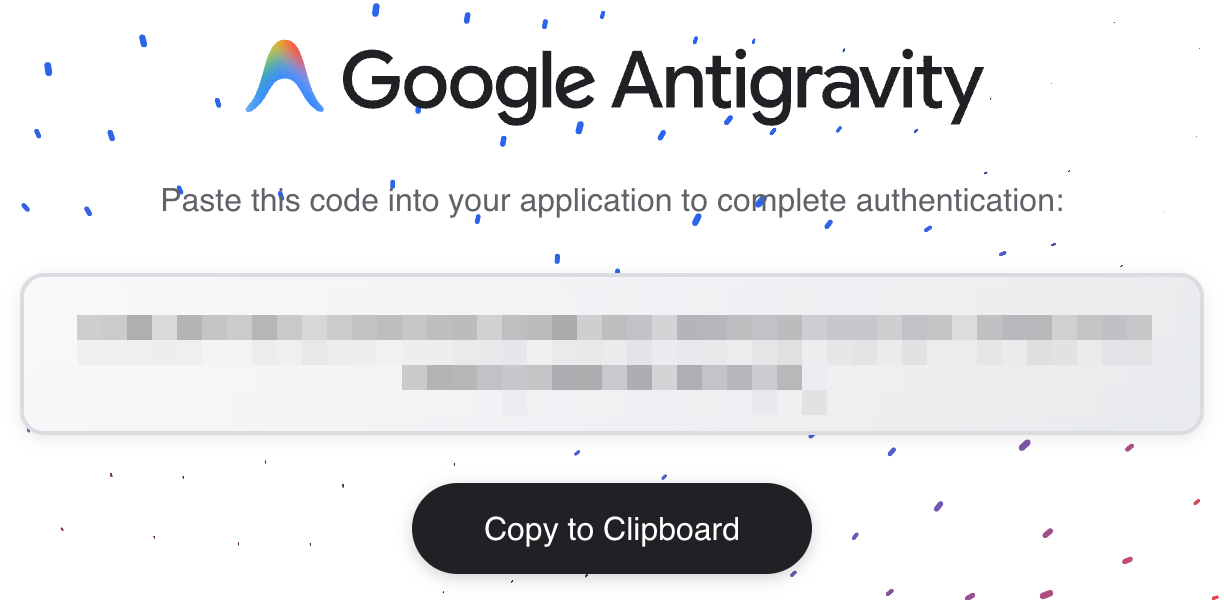
- In Antigravity, paste the code into Enter authorization code under epoc, and choose Submit.

- epoc turns green, with 2 tools enabled. Ask Antigravity's agent about your meetings.

Allow and approve
- epoc's page names the assistant and where its access goes. If that's the assistant you're adding, choose Allow.
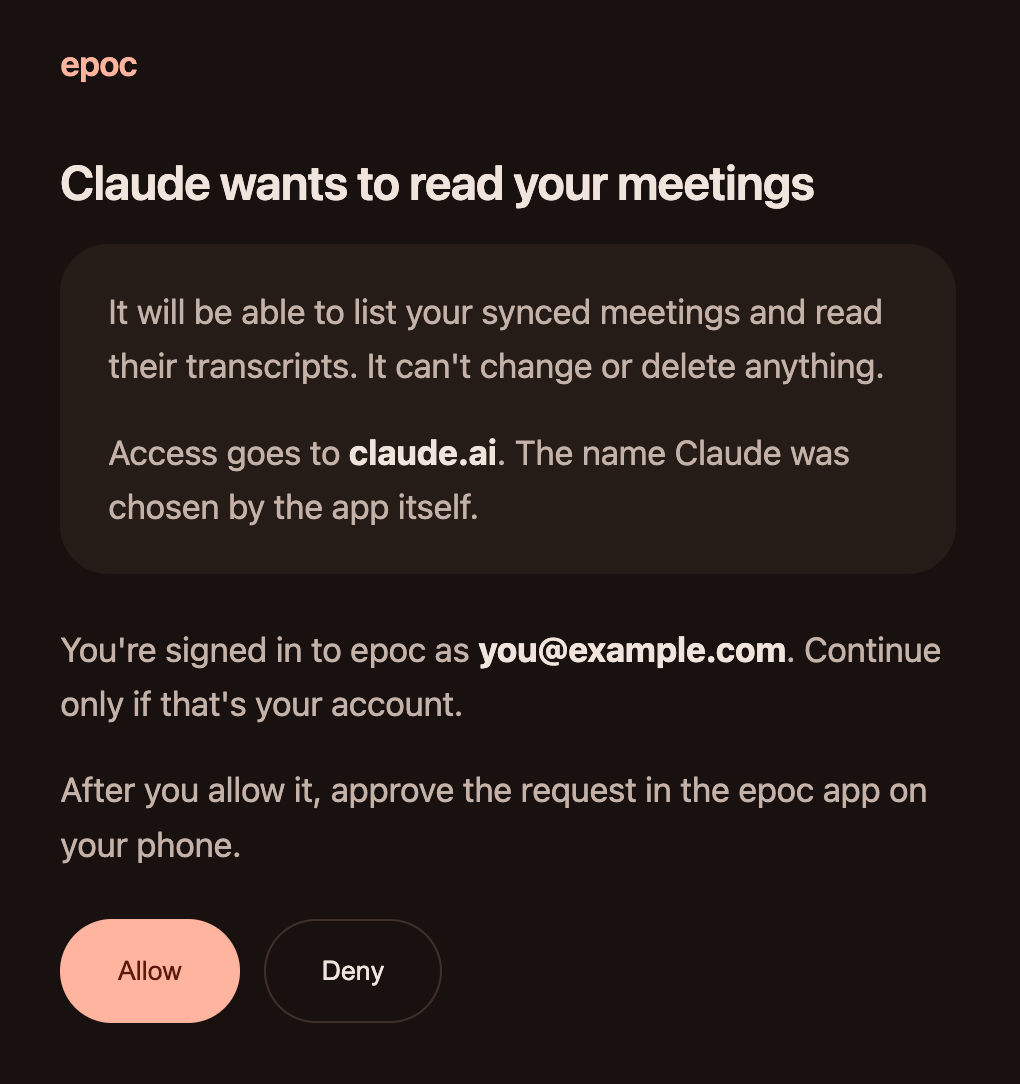
- The page then waits for your phone.
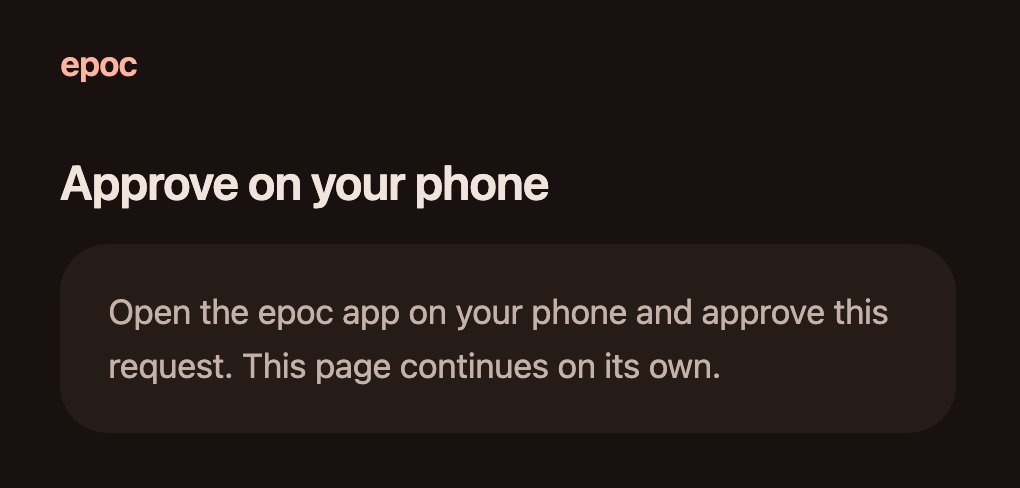
- epoc on your phone shows the request. Check the name and choose Approve. The page in your browser continues on its own, and the assistant is connected.
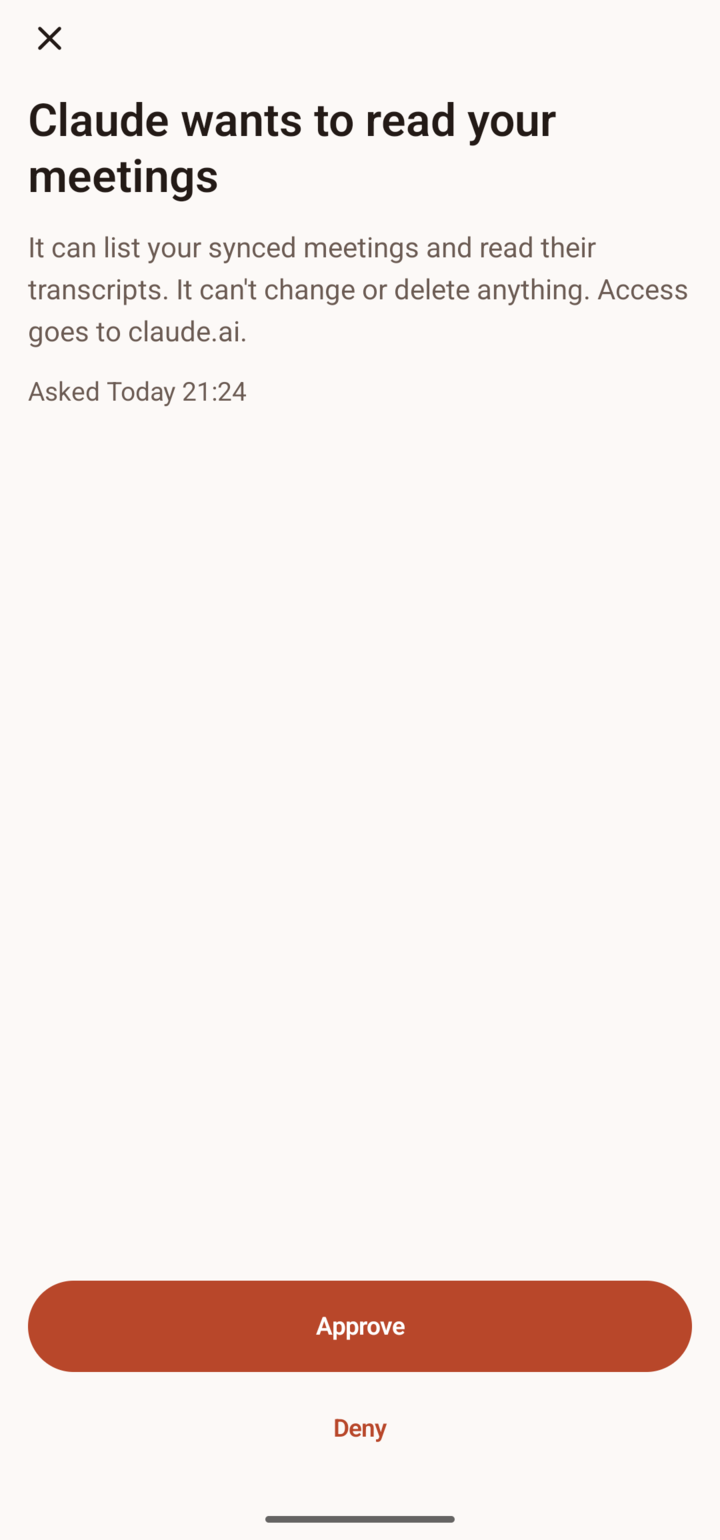
A request waits 5 minutes. If you miss it, connect again from the assistant.
Other apps
Any app that can add a remote MCP server and sign in to it with OAuth works the same way: give it the address, sign in, allow, and approve on your phone.
- Claude Code:
claude mcp add --transport http epoc https://mcp.epoc.si/mcp, then sign in from/mcp. - Codex:
codex mcp add epoc --url https://mcp.epoc.si/mcp, thencodex mcp login epoc. - Gemini CLI, with a Gemini API key or a Gemini Code Assist Standard or Enterprise licence (Google moved everyone else to Antigravity in June 2026):
gemini mcp add --transport http epoc https://mcp.epoc.si/mcp, then/mcp auth epoc. - Cursor: add
"epoc": { "url": "https://mcp.epoc.si/mcp" }undermcpServersinmcp.json. - VS Code: add
"epoc": { "type": "http", "url": "https://mcp.epoc.si/mcp" }underserversinmcp.json.
Asking about your meetings
Ask the way you'd ask a colleague who was there: "What did we decide about the launch date?" or "Summarise yesterday's meeting with the design team." The assistant finds the meeting and reads its transcript.
To keep a meeting from your assistants, choose Don't share with agents in its menu. It's removed from the cloud.
Unlinking an assistant
In epoc, open Settings, then Your agents. Under Agents, tap Unlink next to the assistant. It can no longer read your meetings.
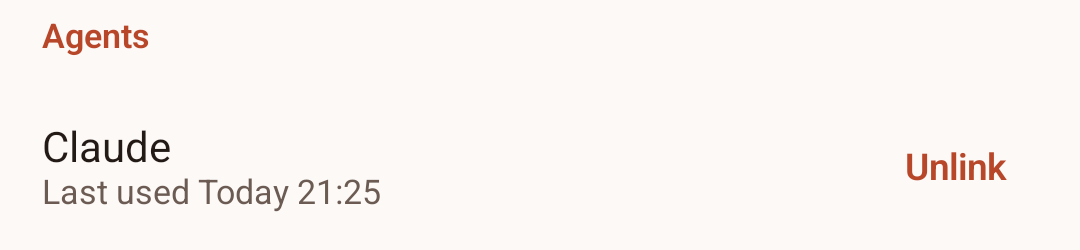
Removing epoc from the assistant's own settings doesn't unlink it in epoc, so do both.
If something goes wrong
- Turn on Your agents first. The account you signed in with has no phone linked. Turn on Your agents in epoc with the same account, then connect again.
- Approve on your phone, then try again. The request was denied or waited longer than 5 minutes. Connect again from the assistant.
- The phone shows no request. Open epoc. It checks for waiting requests whenever it opens.
- Something else. Write to hi@epoc.si.